
Lidarr
Aurral requires Lidarr in this release. Aurral adds artists and albums, reads library state, and shows queue and history status through Lidarr. Separate Aurral-only and split-root ownership modes are not part of this release.
The Lidarr integration has two parts:
- Aurral connects to the Lidarr API.
- Aurral reads the library files at the paths that Lidarr reports.
The API connection can pass while the file connection fails. Mount the same media root in Aurral and Lidarr at the same container path. See Filesystem and mounts.
Connection
Section titled “Connection”Enter these values in first-run setup or in Settings > Lidarr:
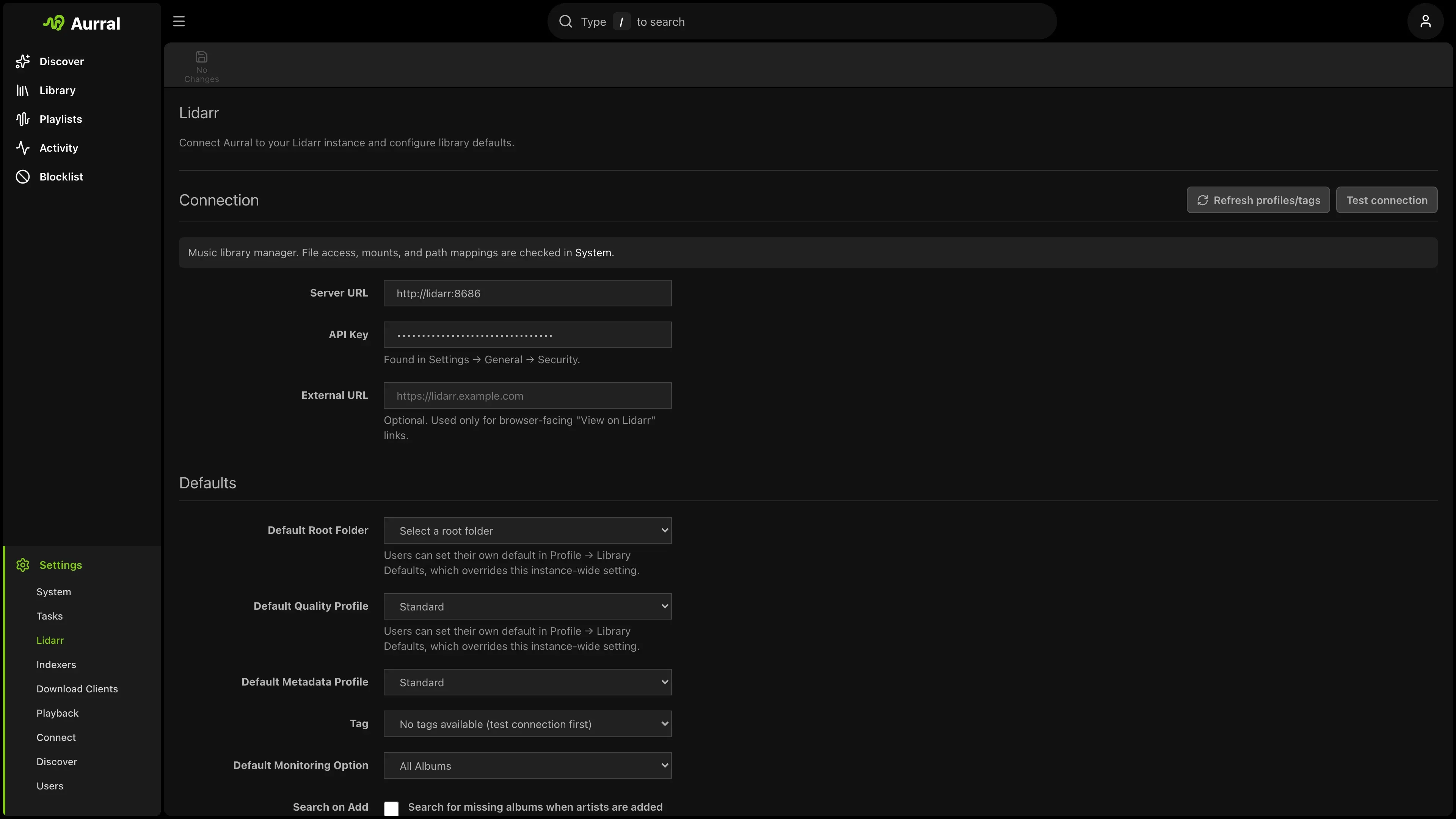
- The URL Aurral can reach (often
http://lidarr:8686in Docker). Aurral supports both HTTP and HTTPS. Use HTTPS when the connection leaves your trusted network. - Your Lidarr API key
- Default quality profile, metadata profile, tag, monitoring option, and search-on-add behavior
- Optional Davo’s Community Lidarr Guide for quality profiles and file names
Metadata providers
Section titled “Metadata providers”Aurral keeps the MusicBrainz UUID for artist routes and stores Lidarr’s provider ID separately. If Lidarr uses a provider such as Tubifarry Deezer or Discogs, Aurral verifies the submitted MusicBrainz artist, accepts names recorded as MusicBrainz aliases, uses Lidarr’s lookup to identify the active provider, and retries a provider-ID format error with the canonical provider ID. Existing provider-ID artists are verified and backfilled when Aurral reads the library. If the identities do not match, search for the artist in Lidarr first or use MusicBrainz metadata.
Library access check
Section titled “Library access check”Aurral tests file access at paths that Lidarr reports. If the test fails, mount the Lidarr media root in Aurral. The recommended layout uses /data in both containers, with a Lidarr root folder such as /data/music.
The check samples a track from an artist inside a root folder. It falls back to an artist outside them and then reports that the artist was left behind by a root folder change.
After Lidarr imports a file, Aurral watches the configured Lidarr root folders and queues a canonical library scan. Aurral does not need a second import step in Lidarr. The file must still be readable at the path Lidarr reports. The canonical Library uses the MusicBrainz and provider identities that Aurral reads from the file and from Lidarr.
Request availability notifications
Section titled “Request availability notifications”To send Request available notifications as soon as Lidarr imports an album, add an outgoing webhook in Lidarr > Settings > Connect:
- Add a Webhook connection.
- Set the URL to
https://aurral.example.com/api/webhooks/lidarrusing the address that Lidarr can reach. - Enable the On Import event.
- Add a custom
X-Api-Keyheader containing the Aurral API key from Settings > System.
Aurral acknowledges other Lidarr webhook events but only changes request
history for the import (Download) event of an album that was requested in
Aurral. The existing Gotify and webhook notification switches still control
which notifications are sent.
If the file does not appear in Library, use the Refresh button there. Refresh waits for the canonical scan to finish. If it still does not appear, run Test library access and check Filesystem and mounts for a path mismatch.
See Library access fails on a folder that is not your root folder.
In mixed Windows and Docker setups, Test library access shows the exact path that Lidarr reports. If that path differs from the path inside Aurral, add a mapping under Settings > Download clients > Remote Path Mappings with Source set to Lidarr.
This mapping only helps Aurral read Lidarr files. Navidrome must scan the corresponding Lidarr music folder before Aurral can add a reused song to an API playlist. See Path mismatches.
Safety
Section titled “Safety”Artist and album changes go through Lidarr. Aurral does not write directly into your root music library.
Import list feeds
Section titled “Import list feeds”Each flow can provide a Lidarr Custom List URL.
- Open the flow menu on Playlists.
- Select Lidarr import URL.
- In Lidarr, open Settings > Import Lists > Custom List.
- Add the URL.
The copied URL uses the Aurral host in your browser. For example, the URL can start with https://aurral.example.com/api/feeds/.
Lidarr must be able to reach that host.
The URL includes a per-flow token. Treat it like a secret. Anyone with the URL can read that flow’s artist list.
The feed always reflects the flow’s current tracklist.
Aurral does not include tracks without a MusicBrainz artist ID in the feed. Aurral includes available album IDs.
Lidarr uses the IDs for Specific Album monitoring on versions that support album-level custom lists.